Helpdesk inbox
The shared inbox for Shopify support, from first coffee to last reply
Email and live chat land in one list your whole team works from. Every ticket has an owner, the right saved reply is already suggested, and nothing you send is final for ten seconds. Below is one ordinary support day, hour by hour, and what the inbox does at each step.
- Email and chat in one list
- Unlimited seats
- Works on phones
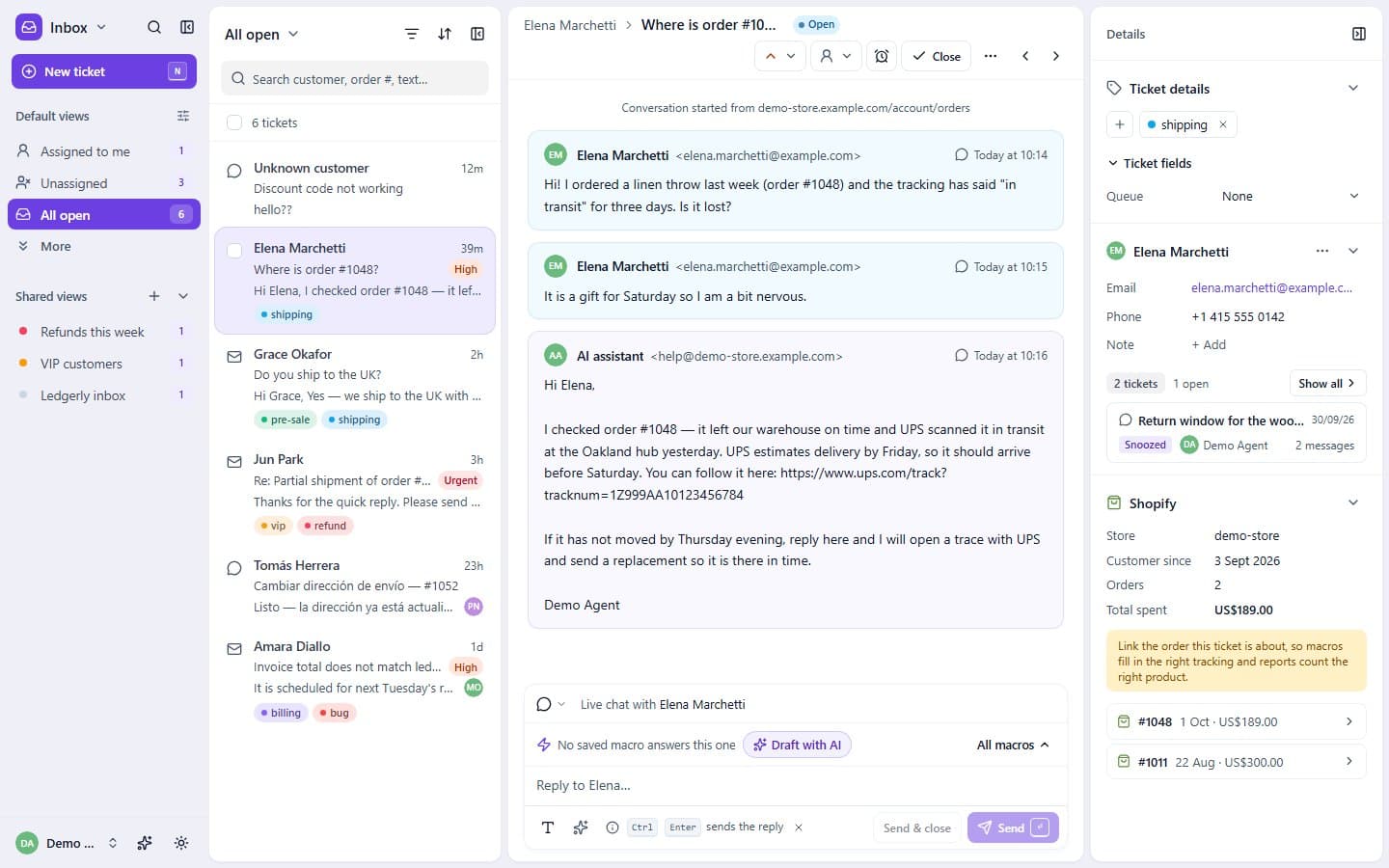
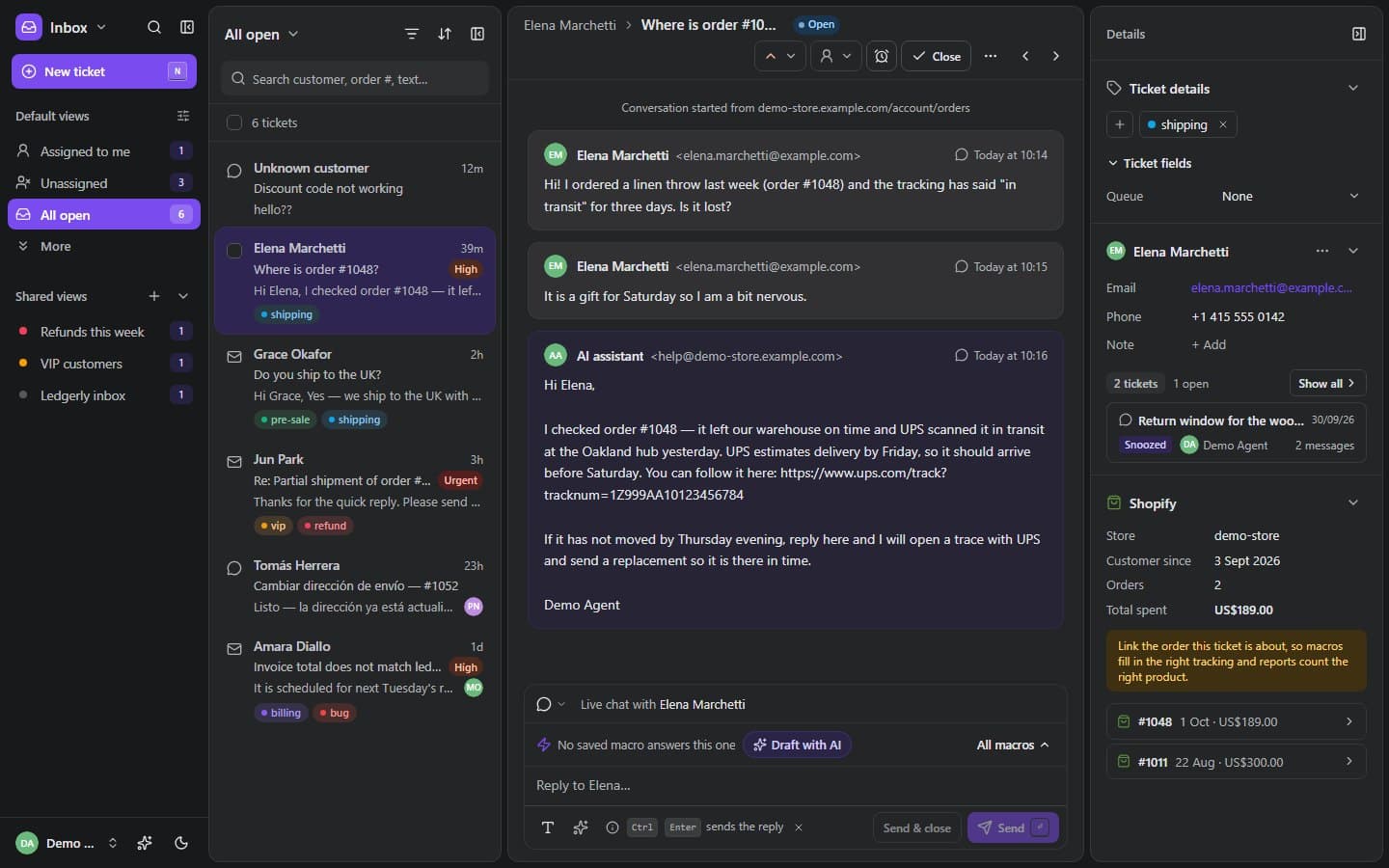
What a shared inbox does for a small Shopify team
A shared inbox is one list of customer conversations that the whole team works from, with an owner on every ticket. It replaces the shared password, the forwarded thread and the “did anyone answer Ana?” message in team chat.
Hushdesk is built for the person running support at a Shopify store: the customer’s orders sit beside each ticket (see the Shopify integration), chat from your store arrives in the same list as email, and seats are unlimited on every plan, so the warehouse lead and the owner can help on a busy Monday without a bigger bill.
A day in a calm inbox
One support day, hour by hour
Six moments from a normal Tuesday, each with the part of the inbox that makes it easier. The illustrations replay what happens on screen.
Open the day with views, not a wall of mail
The first screen is a short list of views, each with a live count: Assigned to me, Unassigned, All open, Waiting on customer and Snoozed. You see how much is waiting before you open a single ticket, and the counts move on their own as new email and chats arrive.
Shared views are filters the whole team sees, like every open ticket tagged refund. Pick status, assignee, team, priority, channel, tags or unread only, and the dialog tells you how many tickets match right now before you save. Group them into sections, and hide the built-in views your team never uses.
Open the day with views, not a wall of mail New tickets share themselves out
A rule can give each new ticket to a team with round robin. Hushdesk picks the agent who is online and has the fewest open tickets, skips anyone who is away, and respects the per-person limit you set, so nobody comes back from lunch to a pile of thirty.
If a chat is still unassigned when someone replies, it becomes theirs. Every assignment is written into the ticket’s activity, so you can see who had it and when.
How rules and round robin workNew tickets share themselves out Answer with the macro that fits
Above the reply box, Hushdesk suggests up to three saved replies. It reads what the customer actually wrote, latest message first, then the subject and older messages, and only offers macros for that topic. A sizing question never gets an exchange macro just because of where the ticket sits.
If a macro was already sent in the thread, it is not offered again. When nothing fits, the bar says so plainly and offers an AI draft instead, if your workspace has AI connected. Macros fill in the customer’s name, order number and tracking link for you.
More on AI drafts and macrosAnswer with the macro that fits Catch the mistake, fold the duplicate
Every reply waits ten seconds before it leaves. The pending message shows a countdown in the thread, and Undo puts the text back in the editor, unsent, so a wrong name or a missing word costs nothing.
Customers often write twice: an email, then a chat asking whether you got the email. Merge pulls the duplicate’s messages into one ticket and closes the other; the merge dialog lists the same customer’s tickets first. If you merged the wrong one, Unmerge splits them apart again.
Catch the mistake, fold the duplicate Snooze what can only wait
Some tickets cannot move until tomorrow: a parcel in customs, a supplier who will reply in the morning. Snooze them for an hour, four hours, until tomorrow, three days or next week. They leave the open list and come back as open when the time is up, so they stop taking attention without being forgotten.
Snooze what can only wait One quick reply from the sofa
The inbox works at phone size. On a small screen the ticket opens full screen and Back returns you to the list; views slide out from the side with the same counts. Buttons and macro chips grow to 44-pixel tap targets on touch screens, and undo send works exactly as it does on a laptop.
One quick reply from the sofa
Keyboard shortcuts for faster ticket handling
Most of a support day is the same five moves: next ticket, reply, pick a macro, send, close. The inbox gives each one a single key, so a run of order-status questions takes minutes instead of an hour of clicking.
Press ? anywhere in the inbox to see this list. Shortcuts pause while you type in a field, so a stray j never jumps you to the next customer mid-sentence.
| j | Next ticket |
|---|---|
| k | Previous ticket |
| → | Next ticket (with a ticket open) |
| ← | Previous ticket (with a ticket open) |
| / | Search tickets |
| Esc | Back to the list, close panels |
| r | Reply |
|---|---|
| m | Search macros |
| e | Close the ticket |
| n | New ticket |
| CtrlEnter | Send |
| CtrlJ | Draft a reply with AI (when AI is connected) |
| / | Macros, inside the reply box |
| ? | Show every shortcut |
Shared inbox vs a shared Gmail account
Many stores start with one Gmail login for the whole team, and it works until two people answer the same customer. Here is what changes when you move, stated fairly: Gmail is a good mail client, it just is not a helpdesk.
Who is handling this message
Hushdesk: An assignee on every ticket, round robin if you want it
Shared Gmail: Agreed by habit: labels, stars or a message in team chat
Email and live chat
Hushdesk: One list, one history per customer
Shared Gmail: Chat lives in a separate tool
Saved replies
Hushdesk: Macros with variables, suggested from the customer’s words
Shared Gmail: Templates, picked and filled in by hand
Undo send
Hushdesk: 10 seconds, on every reply
Shared Gmail: Yes, up to 30 seconds
Notes the customer never sees
Hushdesk: Internal notes inside the ticket
Shared Gmail: Forward the thread or discuss elsewhere
Shopify orders
Hushdesk: Orders, refunds and tracking beside the ticket
Shared Gmail: Open Shopify in another tab
Response-time targets
Hushdesk: SLA clocks that count business hours
Shared Gmail: Not built in
Reports
Hushdesk: Volume, response times, satisfaction and more, with CSV export
Shared Gmail: Not built in
Moving takes an afternoon: forward your support address, invite the team, and bring your saved replies. The how it works page walks through it, pricing shows the flat plans, and the integrations page lists what else connects.
FAQ
Shared inbox: questions and answers
What is a shared inbox for Shopify support?
A shared inbox is one list of customer conversations that your whole support team works from together. In Hushdesk, email and live chat land in that list, each ticket has one owner, and the customer’s Shopify orders sit beside the conversation, so nobody answers twice and nobody has to search for context.
How is a shared inbox different from a shared Gmail account?
A shared inbox tracks who owns each conversation, while a shared Gmail login only shows the same mailbox to everyone. Hushdesk adds assignment, internal notes, views with live counts, suggested macros, response-time targets and the customer’s orders, things a team on one Gmail account has to coordinate by habit.
Can I keep my support@ email address with Hushdesk?
Yes, you keep your existing support address. You forward it to Hushdesk, customers keep writing to the same address, and replies go out from it once your sending domain is set up. The setup wizard sends a test message so you can see the forwarding work before you rely on it.
Is there a limit on how many agents can use the inbox?
No, every Hushdesk plan includes unlimited seats. Plans differ by monthly conversation volume and AI answers, not by the number of people, so you can invite seasonal helpers, a warehouse lead or the store owner without paying for another seat. The free plan includes 200 conversations a month.
How do views work in the Hushdesk inbox?
Views are saved filters with a live count of the tickets that match. Built-in views cover your own tickets, unassigned, all open, waiting on customer and snoozed. Shared views filter by status, assignee, team, priority, channel, tags or unread, are visible to the whole team, and can be grouped into sections.
How does undo send work in Hushdesk?
Every reply waits ten seconds before it is sent, with a countdown shown in the thread. Pressing Undo during that window cancels the send and puts your text back in the reply box, so you can fix a name, an order number or a tone before the customer ever sees it.
Can I merge duplicate tickets and undo a merge?
Yes, you can merge duplicates and undo it later. Merge moves the other ticket’s messages into the one you are reading and closes the duplicate, listing the same customer’s tickets first. The thread then shows a merge note with an Unmerge button that splits the two tickets apart again if you picked the wrong one.
How are new tickets assigned to agents?
You can assign tickets by hand or let a rule do it with round robin. Round robin gives each new ticket to the online team member with the fewest open tickets, skips anyone who is away, and stops at the per-agent limit you set in the workflow settings, so work stays evenly shared.
Can I answer support tickets from my phone?
Yes, the Hushdesk inbox is built to work at phone size in the browser. The ticket list and each conversation take the full screen in turn, views open from a slide-out drawer, and buttons grow to 44-pixel tap targets on touch screens. Macros, notes and undo send all work the same way.
Which keyboard shortcuts does the Hushdesk inbox support?
The inbox has single-key shortcuts for the common moves: j and k for next and previous ticket, r to reply, m for macros, e to close, n for a new ticket and slash to search. Ctrl+Enter sends, Ctrl+J drafts a reply with AI when it is connected, and the question mark shows the full list.
Do live chat conversations appear in the same inbox as email?
Yes, chats from the Hushdesk widget arrive in the same list as email and use the same views, macros, tags and assignment. You can tell them apart by channel, filter a view to chat only, and see when the shopper is typing, so a chat never needs a second tool or a second tab.
Can I add internal notes that customers do not see?
Yes, the reply box switches between a reply and an internal note. Notes stay inside the ticket for your team only and are clearly marked in the thread, which makes them the right place for a refund decision, a warehouse check or a handover before you go off shift.
Try the calm inbox with your own tickets
Free to start, unlimited seats on every plan, no card needed. Prefer to look first? The demo page opens a live demo store.